




Revision of Full Disk Encryption Install from Mon, 06/15/2026 - 06:27
The revisions let you track differences between multiple versions of a post.
This manual describes the steps to install Trisquel GNU/Linux onto an encrypted LVM. The goal is to enhance user security and protect your data from prying eyes. In June, 2026, a new choice is added to this guide: encrypting the boot partition too. This manual is verified for Trisquel 11 Aramo and Trisquel 12 Ecne. In order to understand what this procedure does, as well as what the choice for encrypting the boot partition is, a few basics need to be explained beforehand in the simplest way.
What is the GNU/Linux start-up process?
This is an oversimplified description of the start-up process, following the software that gets executed when the computer is switched on:
- First, the firmware stored in the motherboard flash chip (BIOS or UEFI) gets executed. This firmware includes a bootloader. The bootloader identifies the storage units, reads their Master Boot Record (MBR), identifies their partitions, and loads the kernel image from the boot partition.
- Second, the kernel gets executed. The kernel performs the graphic initialization, mounts the rest of partitions into the filesystem, and loads the rest of the operating system.
Does Full Disk Encryption really mean to encrypt the full disk?
Almost, but no. The MBR is never encrypted. Also, the boot partition could be encrypted or not. So, we have two choices for Full Disk Encryption: with or without encrypting the boot partition. One is fuller than the other, but neither is fullest.
How come Full Disk Encryption means two different things, and how can the the choice with less encryption ever be called full?
This inaccurate naming happens because of historical reasons:
- At first, there is no Full Disk Encryption.
- Then, the kernel gains the ability to manage encrypted partitions, once the MBR is read and the kernel is loaded from the boot partition. This allows for a first form of Full Disk Encryption where everything in the disk is encrypted except for the MBR and the boot partition.
- Then, the bootloaders present in some BIOS and UEFIs gain the ability to manage encrypted partitions, once the MBR is read. This allows for a second form of Full Disk Encryption where everything in the disk is encrypted except for the MBR.
- In the future, bootloaders might get the ability to manage encrypted MBRs, so we could get a choice to encrypt MBR and have Real Full Disk Encryption for once and for all.
What is like to use a computer with Full Disk Encryption?
A computer with Full Disk Encryption work all the same as the rest. The only differences happen at start-up:
- Executing the firmware: if the bootloader in the firmware can manage encrypted partitions, and you choose to have an encrypted boot partition, the bootloader will notice that the boot partition is encrypted and ask you for the passphrase. This happens typically before graphical initialization, when the screen is still in text mode.
- Executing the kernel: the kernel will notice that the rest of the partitions are encrypted and ask you for the passphrase. This happens typically after graphical initialization, when the screen is already in graphical mode. Sadly, if you already introduced the passphrase to decrypt the boot partition, you still need to introduce it a second time for the rest of partitions. At present this happens because the kernel does not receive the passphrase from the bootloader, and in the future this will likely still happen, because the bootloader passing on the password to a kernel would mean a security risk.
New Instructions
- Boot into the liveCD environment and from the installation menu select Install Trisquel in text mode
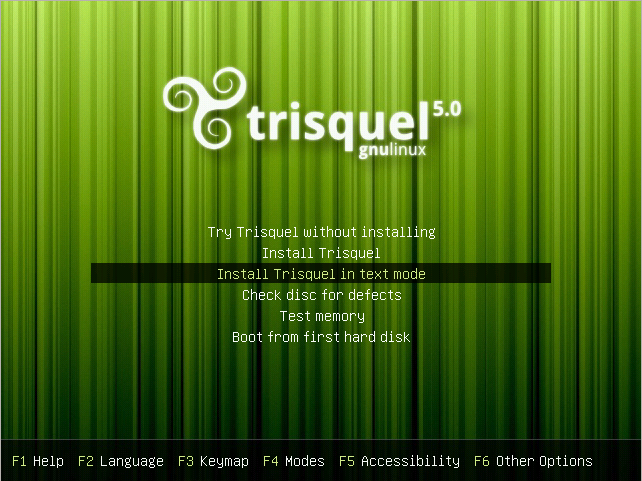
Initial common block
This is an initial common block for both Full Disk Encryption choices. There are small changes between Trisquel versions. The order might vary.
- Select a language.
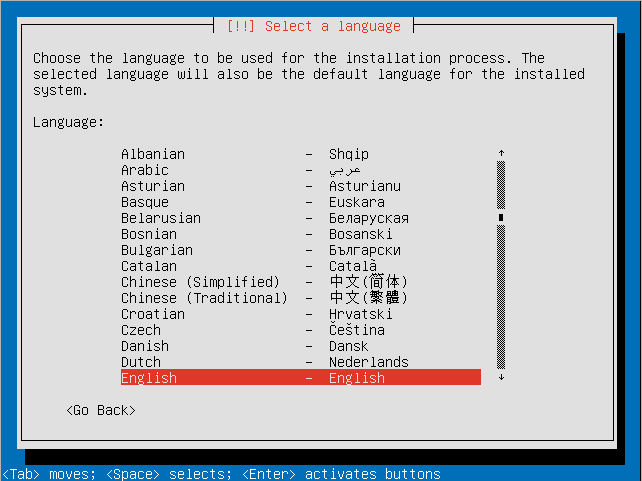
- Select your location.
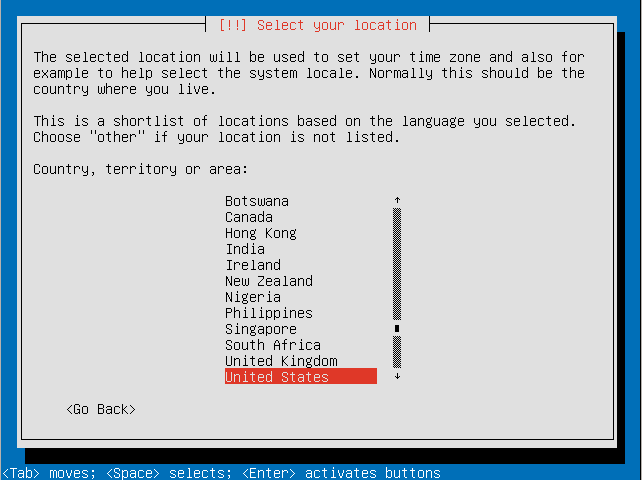
- Decide if you want the installer to detect your keyboard.
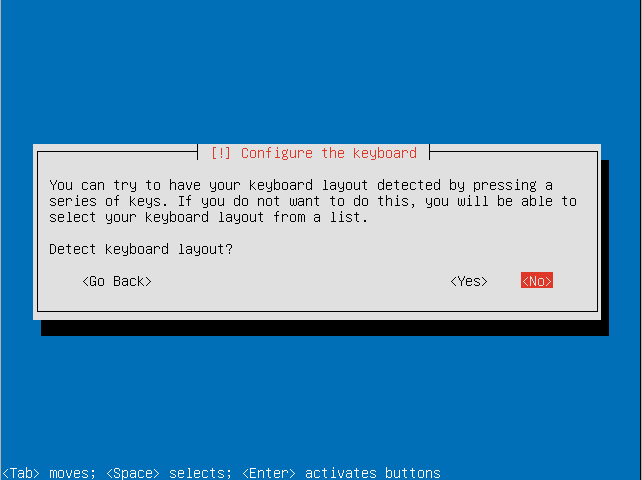
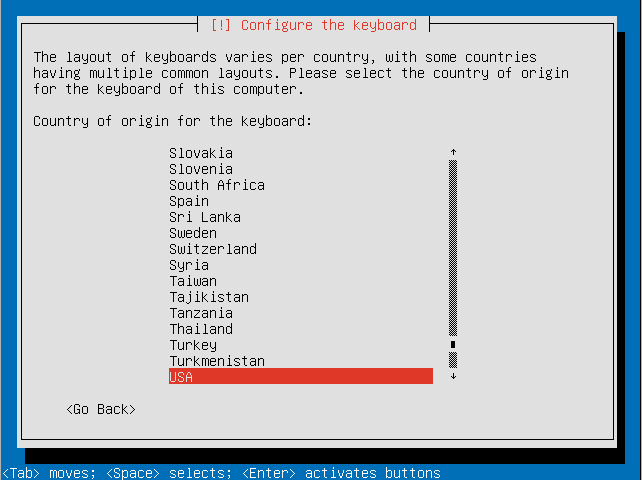
- Choose the country of origin for your keyboard.
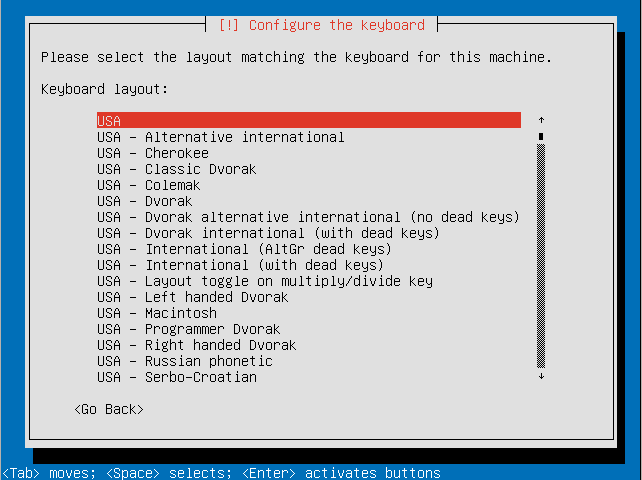
- Select your keyboard layout.
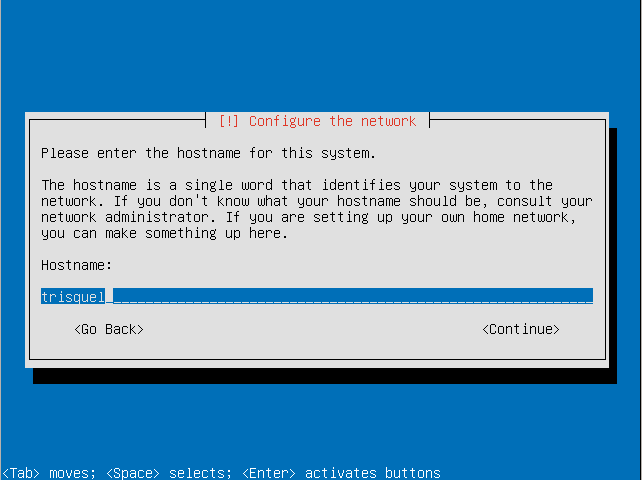
- Choose a hostname for your system.
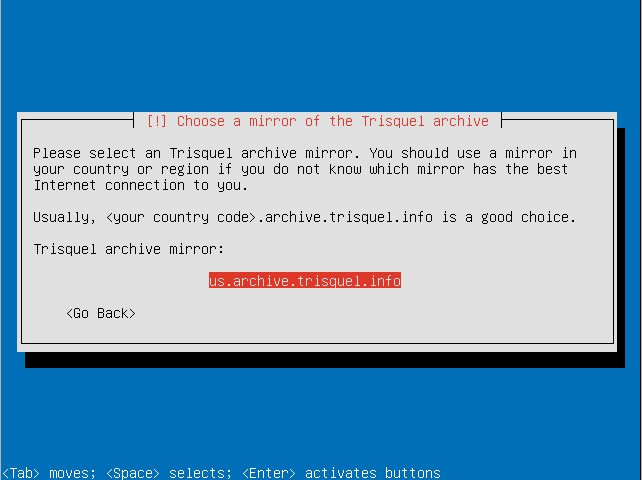
- Choose a country for your preferred mirror.
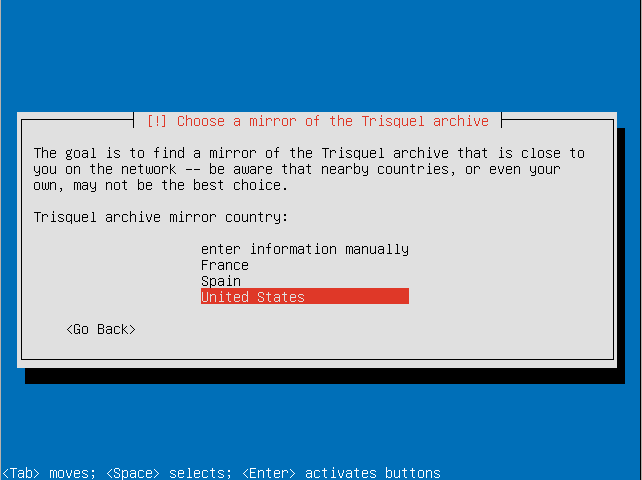
- Select a Trisquel mirror.
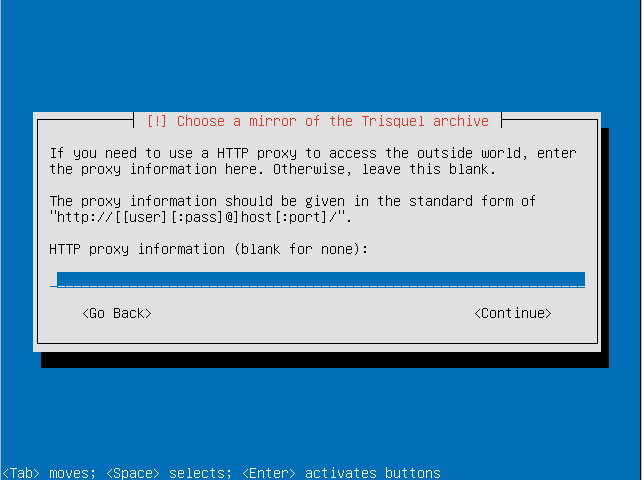
- If you require a proxy to access the Internet enter the information here.
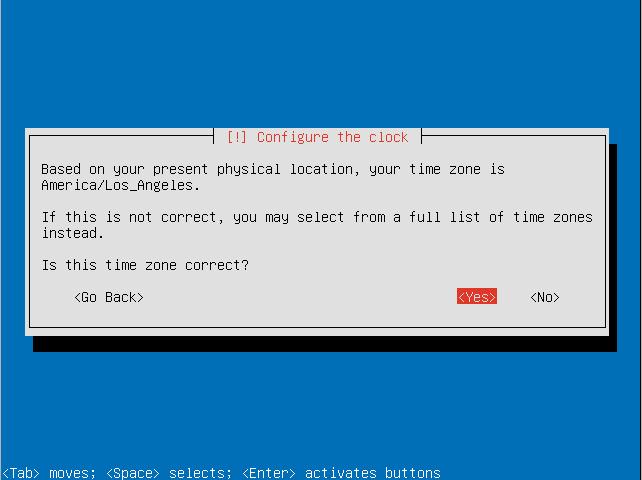
- Make sure the timezone the installer detected is correct.
Partitioning the disks
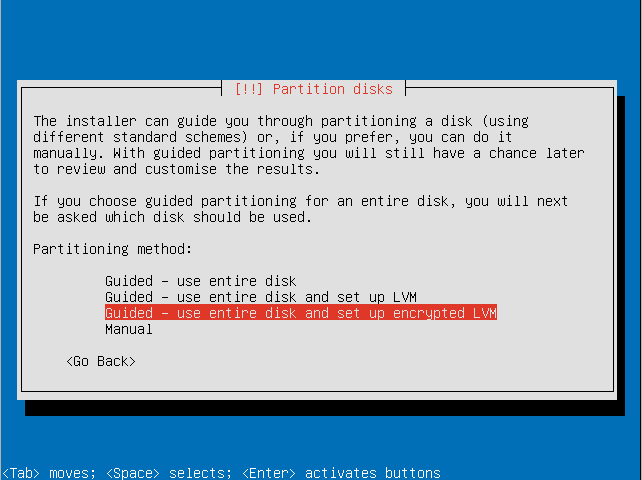
This is where you choose what kind of Full Disk Encryption you do want: with the boot partition unencrypted or encrypted. Choose encrypted only if the bootloader in your firmware (BIOS or UEFI) can manage encrypted partitions so it can boot from one.
Choice A: Full Disk Encryption with boot partition unencrypted
- Choose the Guided - use entire disk and set up encrypted LVM option.
- Select the disk to install Trisquel on.
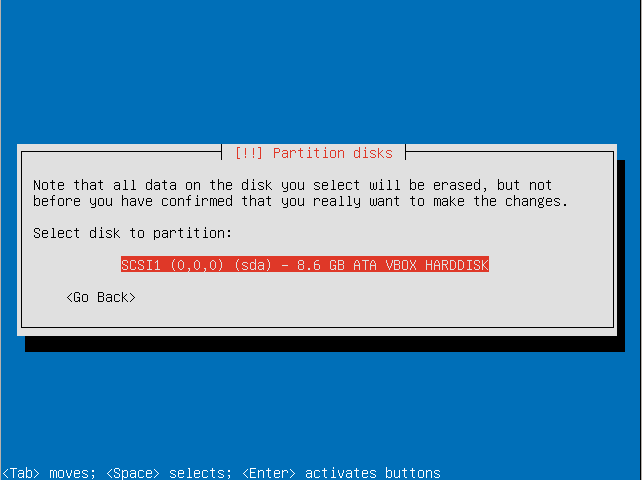
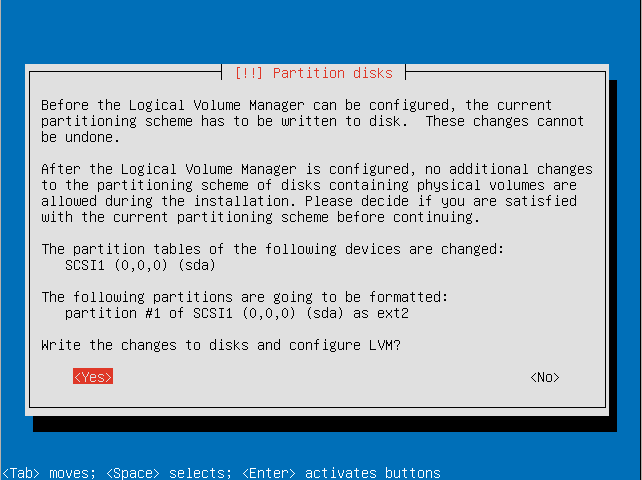
- Confirm that you are willing to write the changes to disk and configure the LVM.
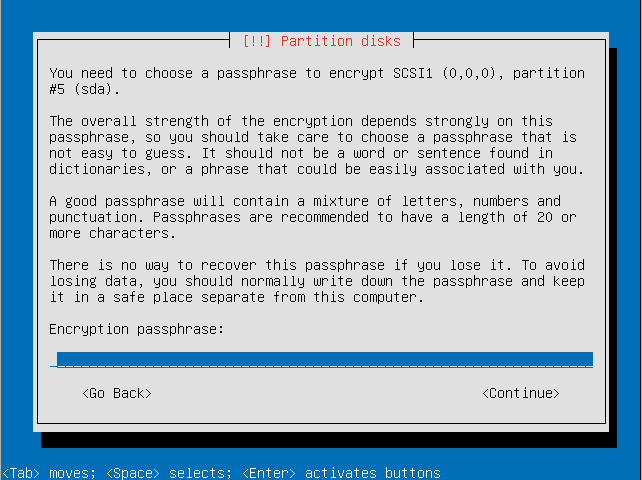
- Enter an encryption passphrase.
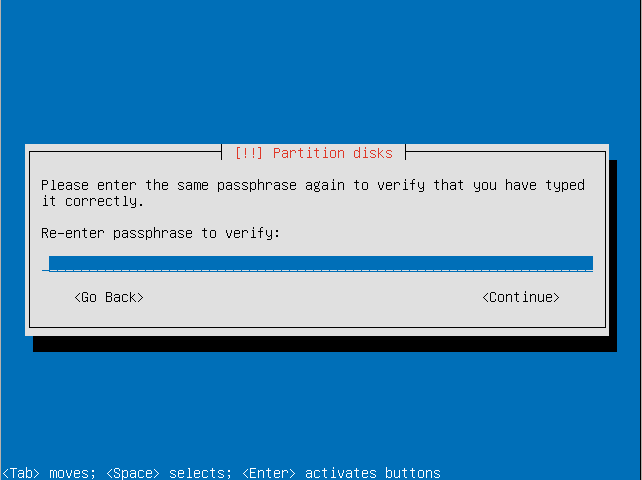
- Resubmit the passphrase to verify it.
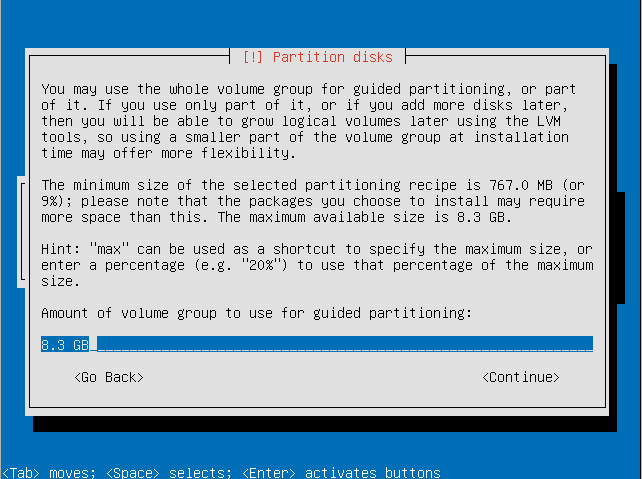
- Choose the amount of the volume group to use for guided partitioning.
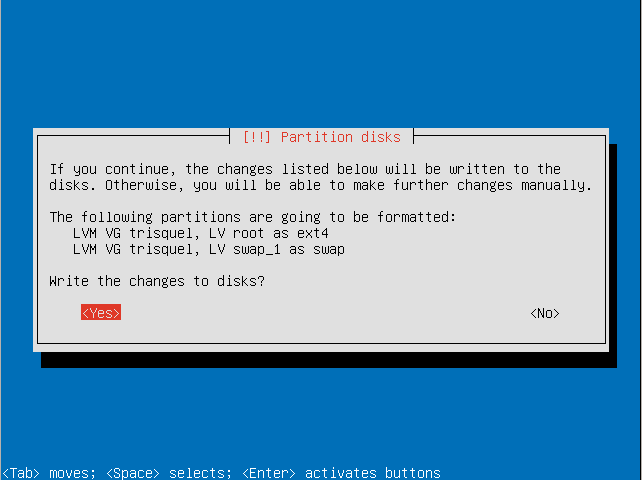
- Confirm that you want to write changes to the disk.
Choice B: Full Disk Encryption with boot partition encrypted
- Choose the Manual option.
- You will be shown the Disk Partitioning menu. This menu shows choices (Guided partitioning, Configure volumes, Undo modifications and Done setting up) and also a list of drives identified by their size and manufacturer name. Select the drive for Full Disk Encryption and press Enter.
- You will be asked to confirm your choice to create a new partition table for the selected drive. Select Yes and press Enter.
- You will be shown the Disk Partitioning menu again, with three new configuring choices, and also a new line saying 'FREE SPACE' below the drive. Select this line and press Enter.
- You will be shown a menu with choices for the drive. Select 'Create a new partition' and press Enter.
- You will be asked the size of the partition, with the default set as all the available space. Leave as it is. Select Continue and press Enter.
- You will be asked the type for the partition. Select Primary and press Enter.
- You will be shown the information for the partition. Select the 'Use as' line and press Enter.
- You will be asked how to use this partition. Select 'physical volume for encryption' and press Enter.
- The following information will be shown:
- If the drive happened to store unencrypted data, leave 'Erase data' as Yes. Otherwise, select Yes and and change it to No.
- Use the arrow keys to select the last line, 'Done setting up the partition', and press Enter.
- You will be shown the Disk Partitioning menu again. Select the line 'Configure encrypted volumes' and press Enter.
- You will be asked to confirm whether to write the changes to disk and configure the encrypted volumes. Select Yes and press Enter.
- You will be shown a menu. Select 'Create encrypted volumes' and press Enter.
- You will be shown a list of the storage devices with their sizes and will be asked which device is to be encrypted. Should your computer have a single drive, there would be a single line, likely named '/dev/sda1'. Be sure to select the right line then press Spacebar so an asterisk appears between the brackets. Then select Continue and press Enter.
- You will be shown a menu. Select 'Finish' and press Enter.
- If you chose to erase data, you will be asked for confirmation now. Select Yes and press Enter. The erasing will take a while.
- You will be asked for the passphrase for encrypting the entire disk twice. The passphrase needs to be different from the user password. Introduce the passphrase then select Continue and press Enter.
- You will be shown the Disk Partitioning menu again, with a new line for the Encrypted Volume, and another line below for the partition #1. Select this below line and press Enter.
- You will be shown a menu. Select the line 'Use as' and press Enter to change its value to 'physical volume for LVM'. Then select 'Done setting up the partition'.
- You will be shown the Disk Partitioning menu again. Select 'Configure the Logical Volume Manager' and press Enter.
- You will be asked whether to 'Keep current partition layout and configure LVM'. Select Yes and press Enter.
- You will be shown the LVM menu, showing the number of free physical volumnes, used physical volumes, volume groups and logical volumes. Select 'Create volume group' and press Enter.
- You will be asked for the name for the volume group. Introduce 'matrix', then select Continue and press Enter.
- You will be asked to choose the devices for the new volume group. You should have a single one. Select the line then press Spacebar so an asterisk appears between the brackets. Then select Continue and press Enter.
- You will be back at the LVM menu. Select the line 'Create logical volume' and press Enter.
- You will be asked which volume group will be used. You should have a single one, the one you just created. Select it and press Enter.
- You will be asked the name for the logical volume. Introduce 'rootvol' and press Enter.
- You will be asked the size for the logical volume, by default all of the available space. Should you want to use a swap partition, subtract 2048 Megabytes to the size of the quantity you see fit. Select Continue and press Enter. You will be back at the LVM menu.
- Should you want to use a swap partition, select 'Create logical volume' and press Enter, then select the volume group and press Enter, introduce the name 'swap' and press Enter, introduce the size (2048 Megabytes to the size of the quantity you see fit) and press Enter.
- At the LVM menu, select 'Finish' and press Enter.
- You will be shown the Disk Partitioning menu again. Select the partition from Logical Volume rootvol and press Enter.
- You will be shown the partition menu. Select Ext4 filesystem and press Enter.
- You will be shown the partition information. Select the mountpoint and press Enter.
- You will be shown the mountpoint choices. Select / and press Enter.
- You will be shown the partition information again. Select 'Done setting up partition' and press Enter.
- You will be shown the Disk Partitioning menu again. Should you have a Logical Volume swap, select it and press Enter. You will be shown the partition menu. Select 'swap area' and press Enter, then select 'Done setting up partition' and press Enter.
- You will be shown the Disk Partitioning menu again. Select 'Finish partitioning and write changes to disk'
- Should you have not a swap partition, you will be asked to confirm that you do not wish to return to the Disk Partitioning menu. Select No and press Enter.
- You will be asked to confirm to write the modifications to the disks. Select Yes and press Enter.
| Use as: | physical volume for encryption |
| Encryption method: | Device-mapper (dm-crypt) |
| Encryption: | aes |
| key size: | 256 |
| IV algorithm: | xts-plain64 |
| Encryption key: | passphrase |
| Erase data: | Yes |
Final Common block
This is a final common block for both Full Disk Encryption choices. There are small changes between Trisquel versions. The order might vary.
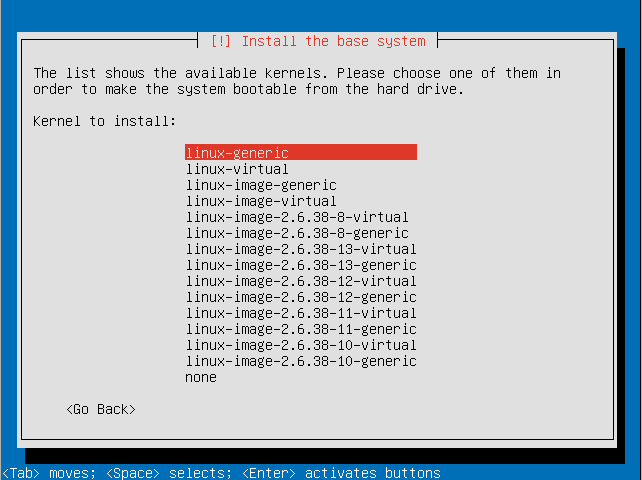
- Select a kernel to install.
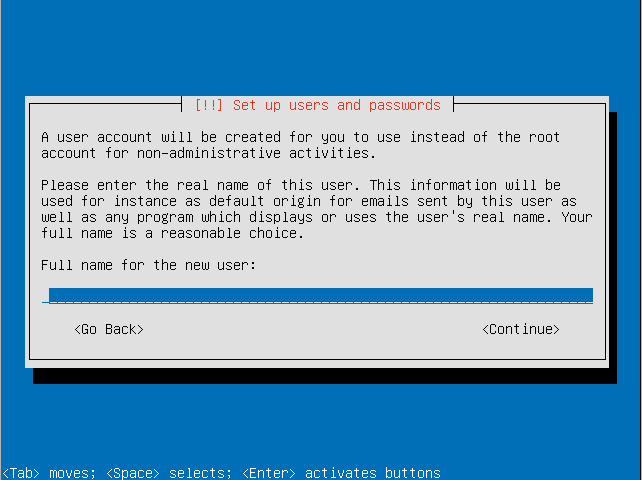
- Enter the full name for the use account that will be created.
- Choose a username for the user account.
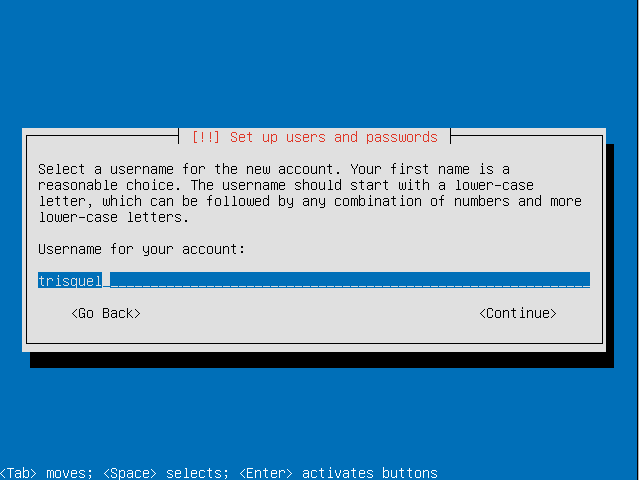
- Choose a password for the user.
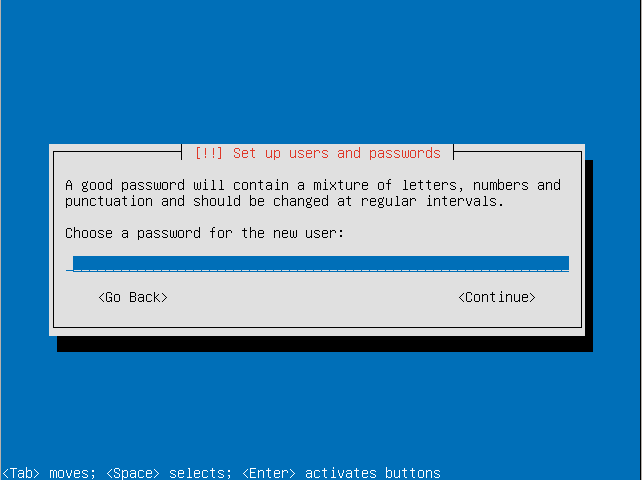
- Re-enter the password to verify it.
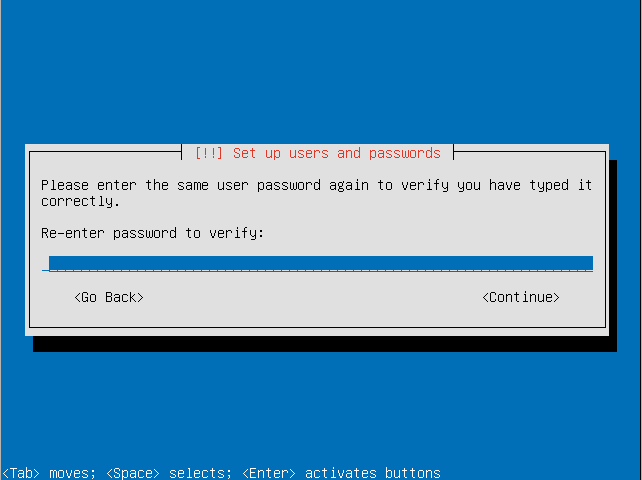
- Choose if you want to also encrypt your home directory. This can be useful for a computer with multiple users even if the LVM itself is encrypted.
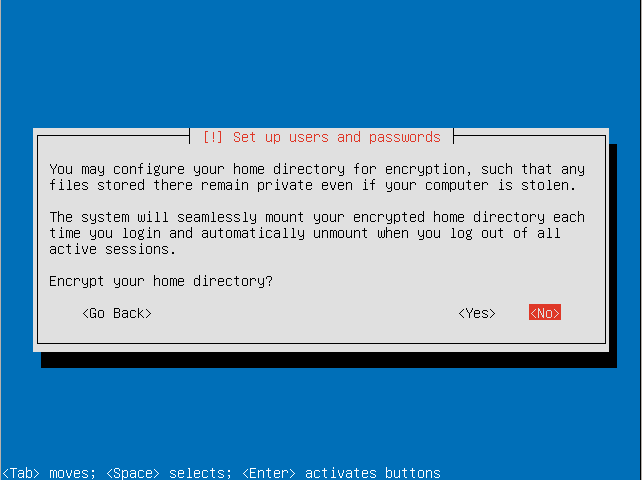
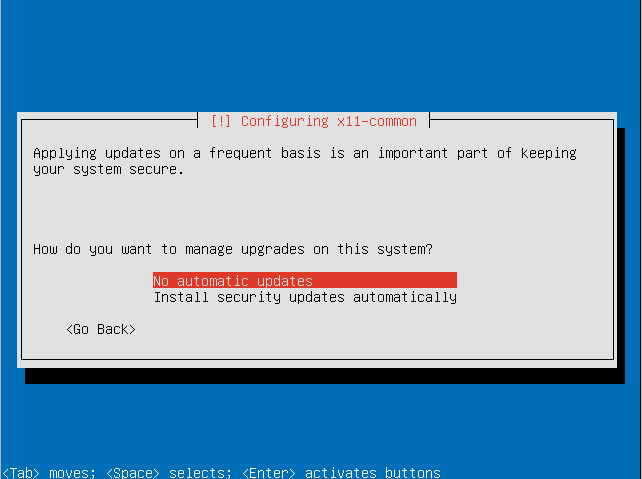
- Decide how you want to manage upgrades on your system.
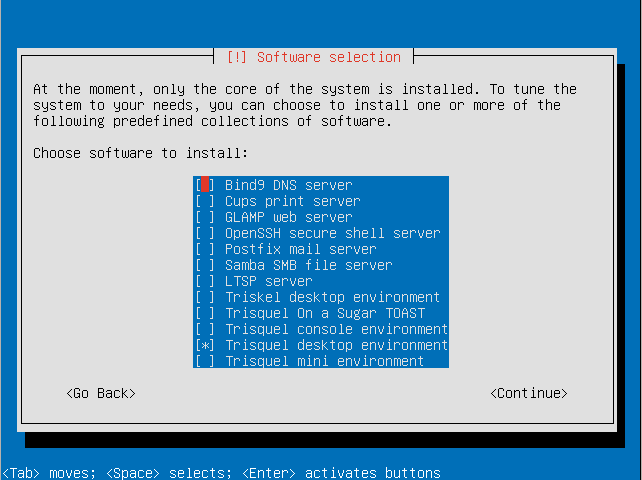
- Choose the software sets you want to install. For this tutorial we will be installing the default Trisquel desktop environment.
- Select continue to continue software configuration.
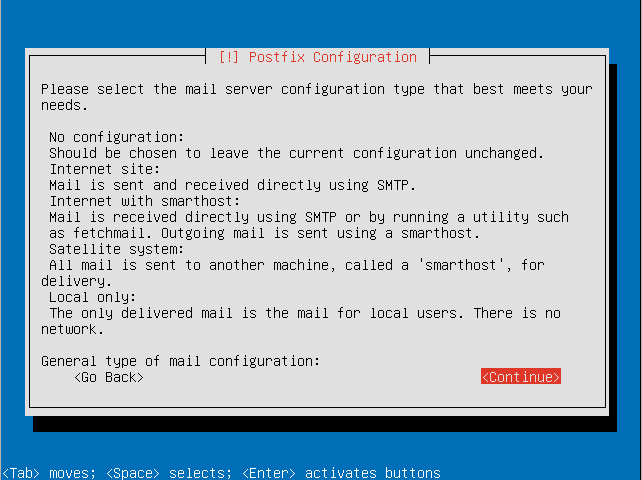
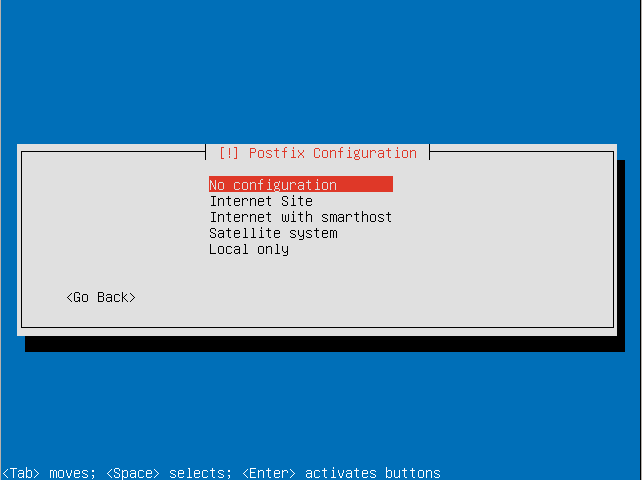
- Configure postfix (if you wish to have an email server).
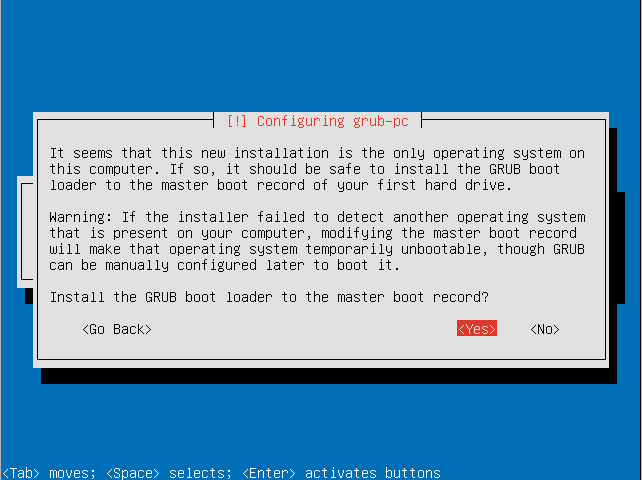
- Decide if you want to install the GRUB boot loader to the master boot record.
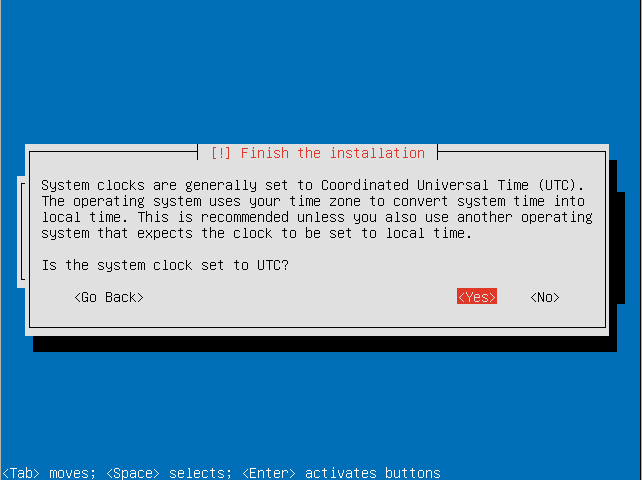
- Select if your system clock is set to UTC.
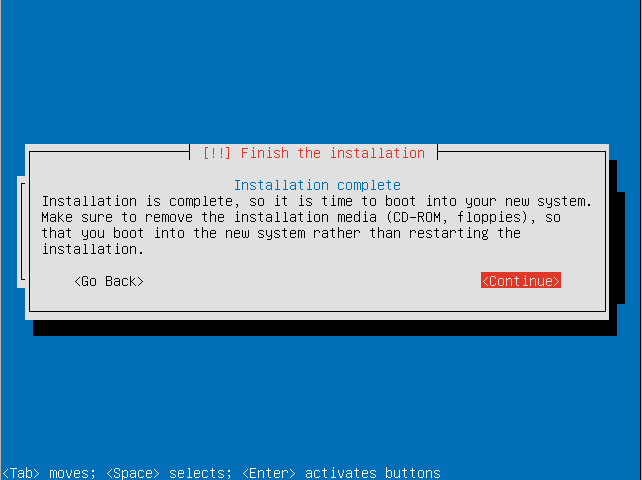
- Remove the boot media (e.g. Trisquel CD) and press continue to reboot.
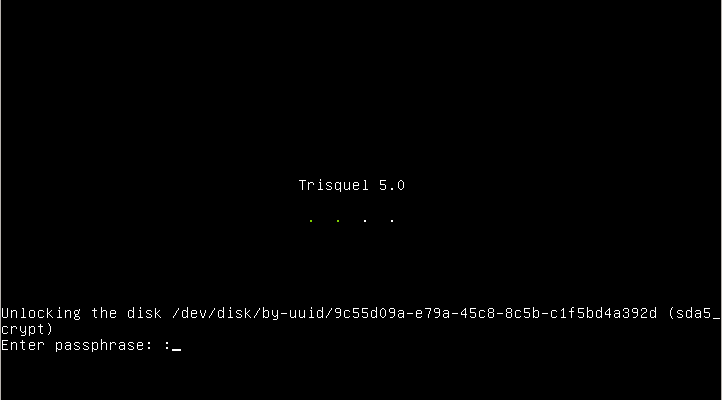
- Enter your encryption passphrase to decrypt the LVM.
- Login with your user credentials to enter your Trisquel GNU/Linux system.
Additional Information
- The steps outlines for this example system may differ based on your needs. For example if you live in Spain you should not select that you live in the United States.
- For instructions on how to accomplish this via terminal see the corresponding manual.
Revisions


